> ## Documentation Index
> Fetch the complete documentation index at: https://docs.paypers.ai/llms.txt
> Use this file to discover all available pages before exploring further.
# รายงานผ่าน Google Drive
> วิธีการดู report จาก Google Drive
# วิธีการดู Report จาก Google Drive
ไฟล์ใบเสร็จและใบรับรองทั้งหมดจะถูกจัดเก็บใน Google Drive ของคุณโดยอัตโนมัติ ทำให้คุณสามารถเข้าถึงเอกสารได้ทุกที่ทุกเวลา
อีเมลที่ใช้เชื่อมต่อกับ Paypers จะถูกใช้สำหรับสร้าง Google Sheet, Google Drive และฟีเจอร์สแกนใบเสร็จผ่านอีเมล
## โครงสร้างโฟลเดอร์
Paypers จะสร้างโฟลเดอร์ใน Google Drive ของคุณโดยอัตโนมัติ ดังนี้:
```
Paypers/
├── [ชื่อธุรกิจ]/
│ ├── 2026-01/
│ │ ├── ใบเสร็จ/
│ │ └── ใบรับรอง/
│ ├── 2026-02/
│ │ ├── ใบเสร็จ/
│ │ └── ใบรับรอง/
│ └── ...
```
## การเข้าถึงไฟล์
เข้า Google Drive โดยใช้อีเมลที่เชื่อมต่อกับ Paypers
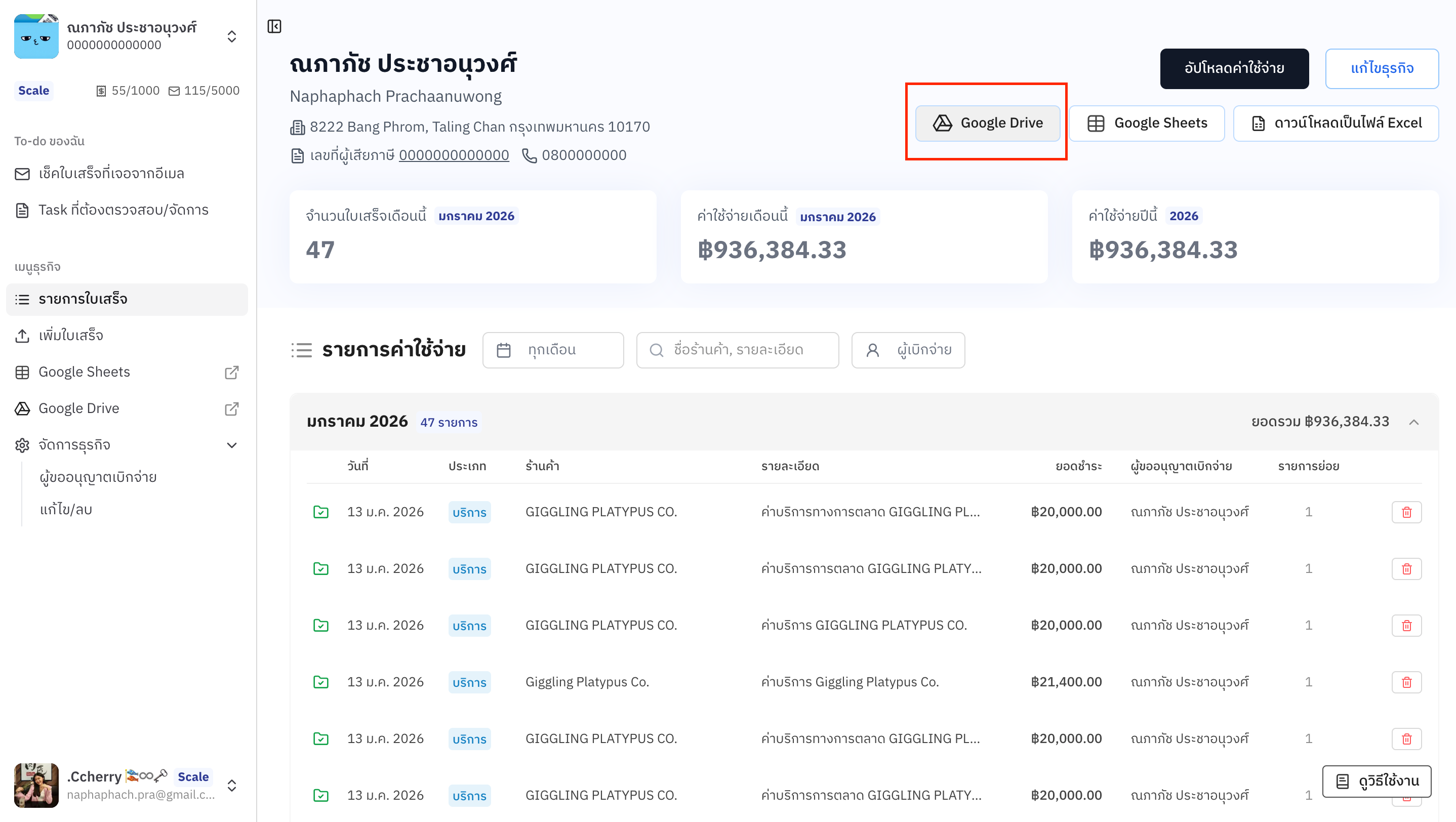
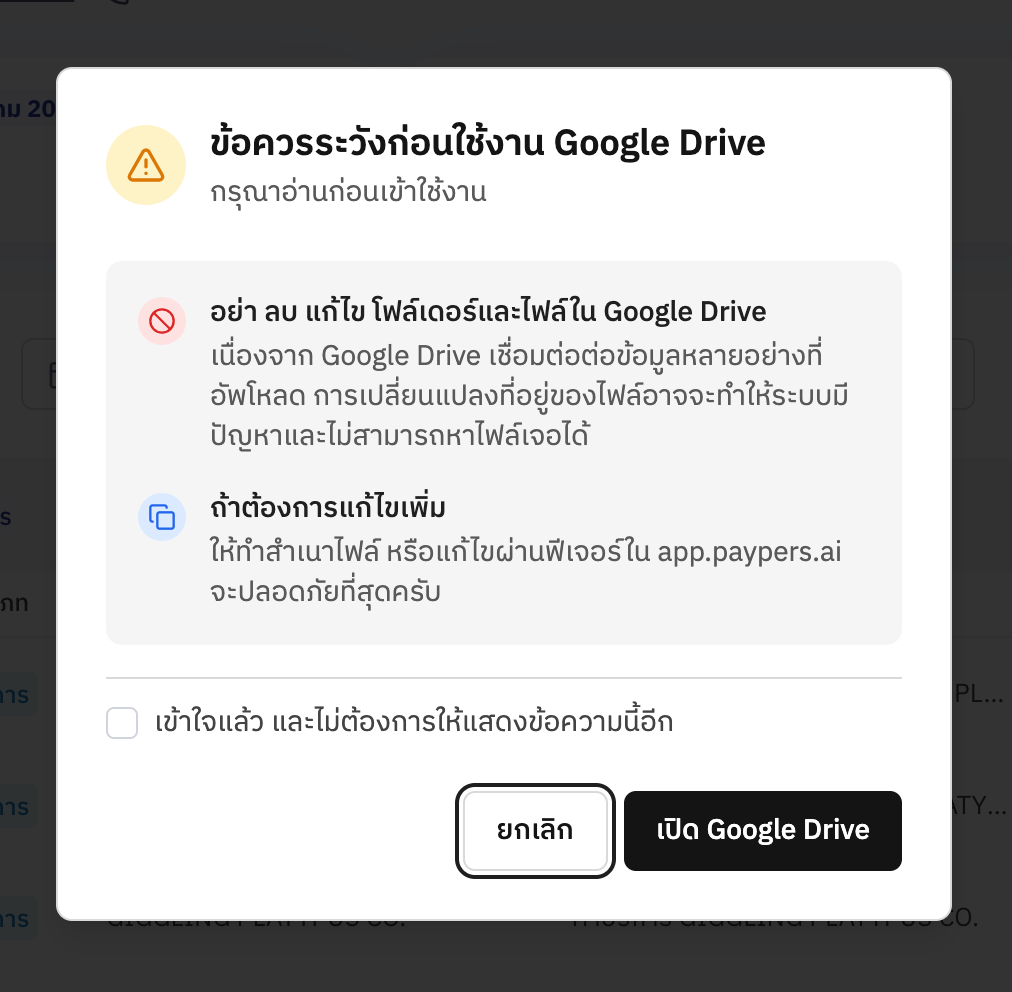 คลิกเข้าโฟลเดอร์ "Paypers" ในหน้าแรกของ Drive หรือค้นหาในช่องค้นหา
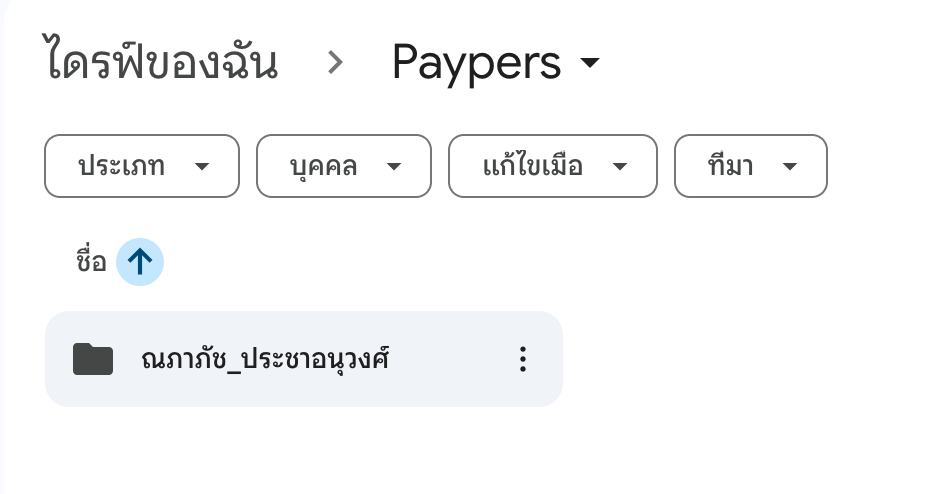 เลือกโฟลเดอร์ธุรกิจที่ต้องการดูเอกสาร
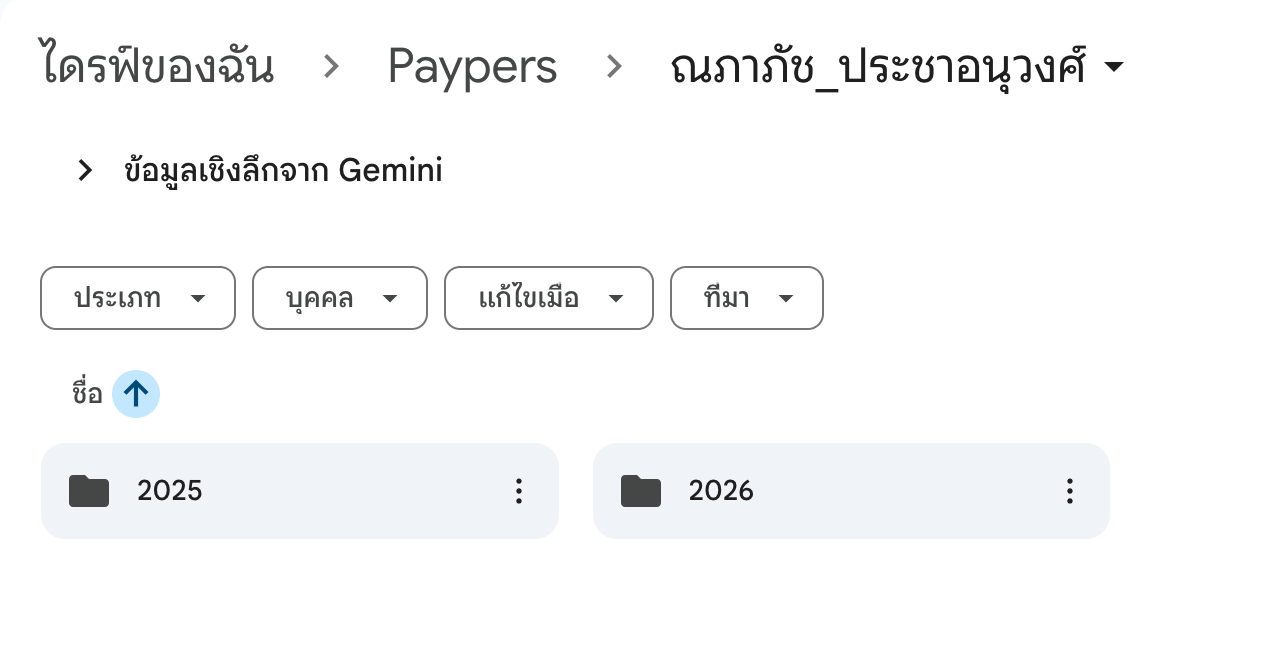 เลือกโฟลเดอร์ปีที่ต้องการดู เช่น "2026"
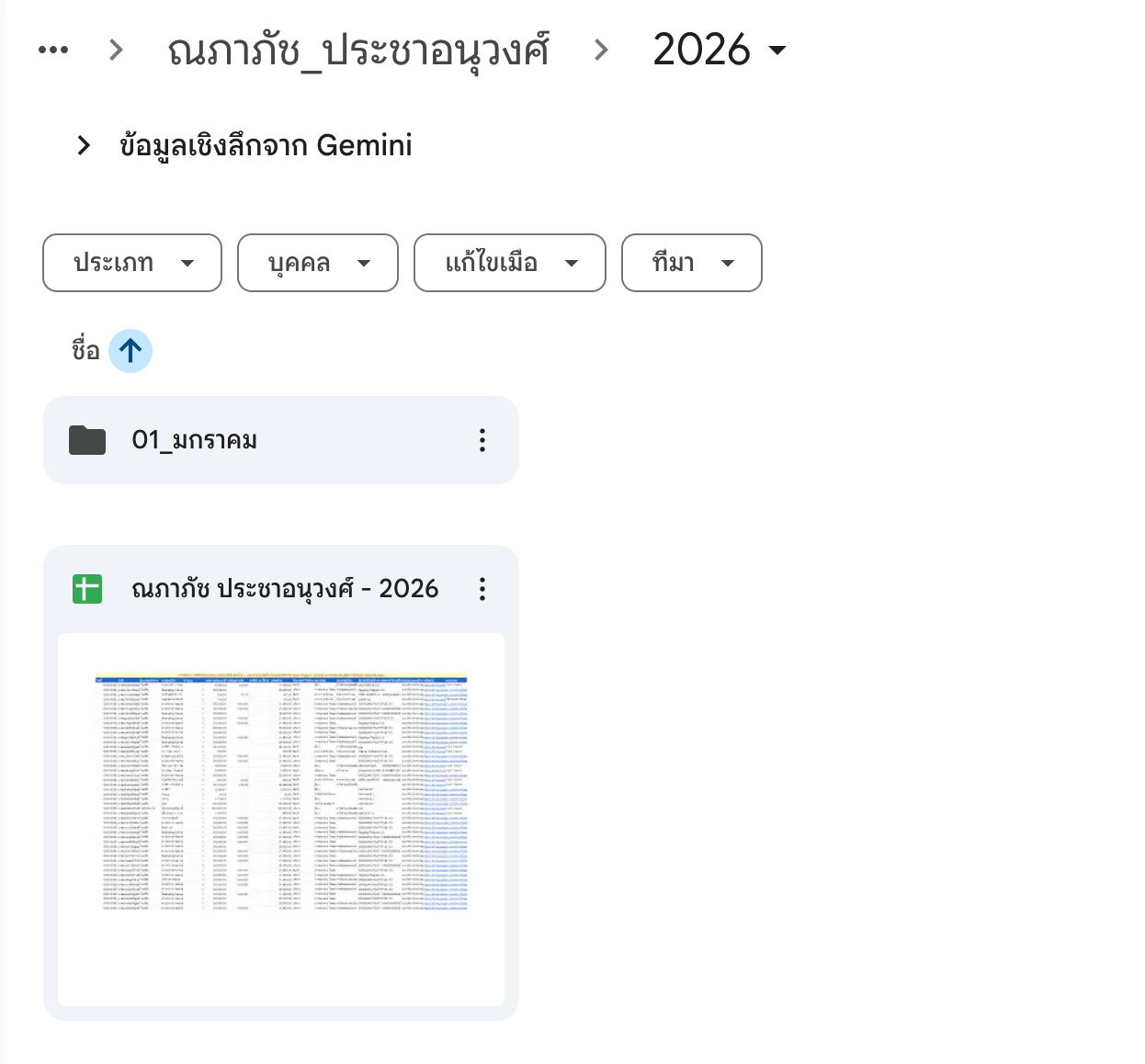
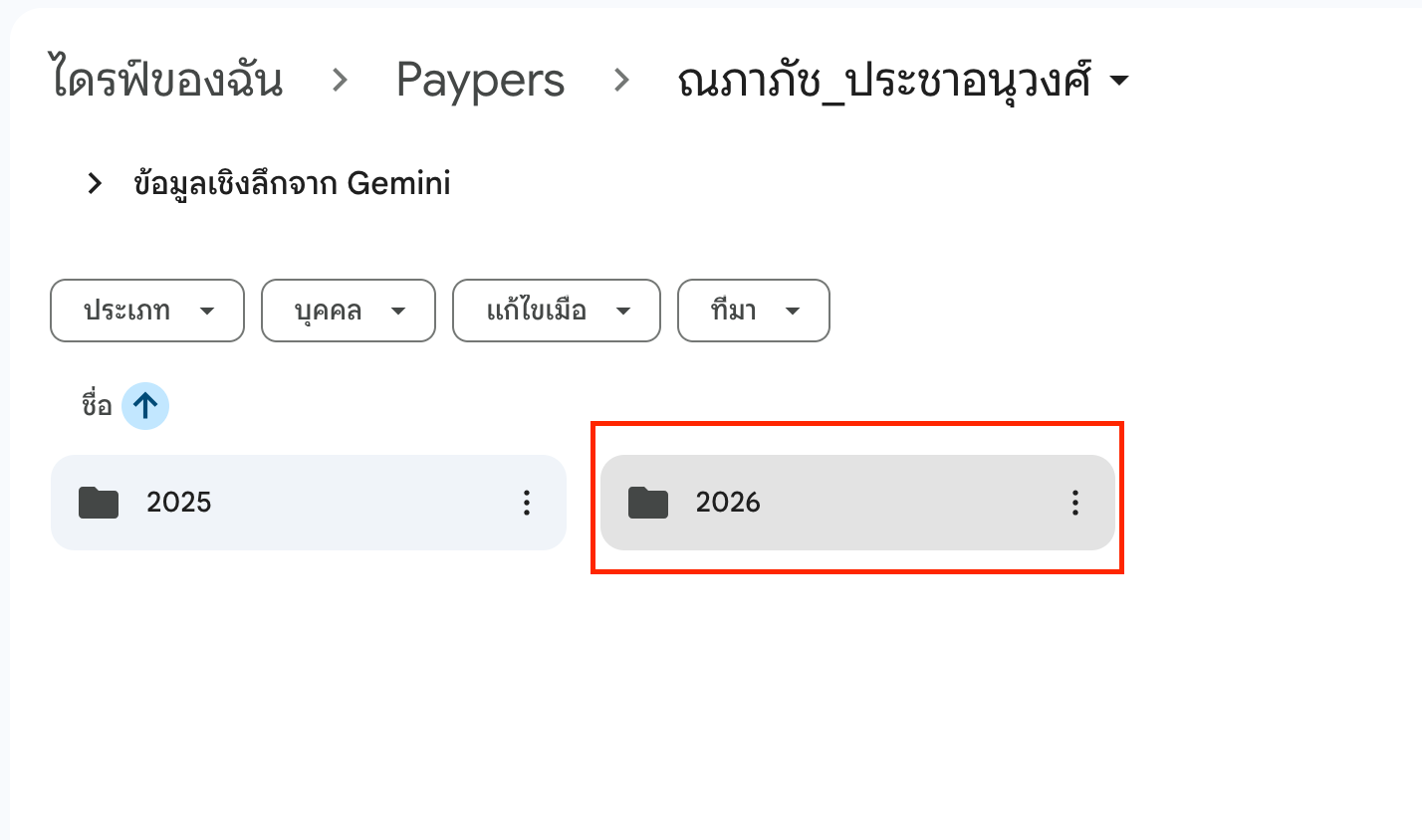 เลือกระหว่างโฟลเดอร์ "เดือนของใบเสร็จ" หรือ "ไฟล์สรุปรายการใบเสร็จ" ตามที่ต้องการ
 ## ไฟล์ที่จัดเก็บ
รูปภาพหรือ PDF ใบเสร็จที่คุณอัปโหลดเข้าระบบ
PDF ใบรับรองที่ระบบสร้างให้อัตโนมัติ
ไฟล์ที่แนบเพิ่มเติมเป็นหลักฐาน
## การดูไฟล์ใบเสร็จจาก Google Sheet
คุณยังสามารถคลิกลิงก์ในคอลัมน์ไฟล์ใน Google Sheet เพื่อเปิดดูรูปใบเสร็จใน Google Drive ได้โดยตรง

## ดูโครงสร้างโฟลเดอร์
เมื่อคลิกลิงก์จะเปิดหน้าโฟลเดอร์ใน Google Drive ที่เก็บไฟล์นั้นๆ

คุณสามารถแชร์โฟลเดอร์กับสำนักงานบัญชีเพื่อให้เข้าถึงเอกสารได้สะดวก โดยคลิกขวาที่โฟลเดอร์แล้วเลือก "แชร์"
## การค้นหาไฟล์
คุณสามารถใช้ช่องค้นหาของ Google Drive เพื่อหาไฟล์ได้รวดเร็ว โดยพิมพ์:
* ชื่อร้านค้า
* วันที่
* หมายเลขใบเสร็จ
**ข้อควรระวัง:** ห้ามลบหรือย้ายไฟล์ใน Google Drive ด้วยตนเอง เพราะจะทำให้ลิงก์ใน Google Sheet ใช้งานไม่ได้
## ไฟล์ที่จัดเก็บ
รูปภาพหรือ PDF ใบเสร็จที่คุณอัปโหลดเข้าระบบ
PDF ใบรับรองที่ระบบสร้างให้อัตโนมัติ
ไฟล์ที่แนบเพิ่มเติมเป็นหลักฐาน
## การดูไฟล์ใบเสร็จจาก Google Sheet
คุณยังสามารถคลิกลิงก์ในคอลัมน์ไฟล์ใน Google Sheet เพื่อเปิดดูรูปใบเสร็จใน Google Drive ได้โดยตรง

## ดูโครงสร้างโฟลเดอร์
เมื่อคลิกลิงก์จะเปิดหน้าโฟลเดอร์ใน Google Drive ที่เก็บไฟล์นั้นๆ

คุณสามารถแชร์โฟลเดอร์กับสำนักงานบัญชีเพื่อให้เข้าถึงเอกสารได้สะดวก โดยคลิกขวาที่โฟลเดอร์แล้วเลือก "แชร์"
## การค้นหาไฟล์
คุณสามารถใช้ช่องค้นหาของ Google Drive เพื่อหาไฟล์ได้รวดเร็ว โดยพิมพ์:
* ชื่อร้านค้า
* วันที่
* หมายเลขใบเสร็จ
**ข้อควรระวัง:** ห้ามลบหรือย้ายไฟล์ใน Google Drive ด้วยตนเอง เพราะจะทำให้ลิงก์ใน Google Sheet ใช้งานไม่ได้